Markdown syntax at a glance

With these elements, you write notes, tickets and messages. For each one, you see the mark, an example and the result. All marks on one printable page are in the cheat sheet.

Paragraph

Mark
↵ ↵

A blank line separates two paragraphs. A single line break isn’t enough: Markdown joins the two lines into one paragraph. For a line break inside a paragraph, put two spaces or a backslash (\) at the end of the line.

More on this

In HTML, the line break becomes a <br> and the paragraph a <p>. The original Markdown doesn't know the backslash, and some apps show it as a character. You can't see the two spaces, and some editors delete them when saving.

Markdown (click to edit)

This is the first paragraph.

After a blank line, the second one starts.

Result

This is the first paragraph.

After a blank line, the second one starts.

Obsidian: Different

By default, Obsidian already shows a single line break as a new line. With the “Strict Line Breaks” setting, the standard applies.

As in the standard GitHub

Jira: Different

The ↵ Enter key starts a new paragraph. For a line break in the same paragraph, press ⇧ Shift + ↵ Enter.

Confluence: Different

The ↵ Enter key starts a new paragraph. For a line break in the same paragraph, press ⇧ Shift + ↵ Enter.

As in the standard, read only ChatGPTAs in the standard, read only Claude

Notion: Different

The ↵ Enter key starts a new block. For a line break in the same block, press ⇧ Shift + ↵ Enter.

Trello: Different

The ↵ Enter key starts a new paragraph. For a line break in the same paragraph, press ⇧ Shift + ↵ Enter.

ClickUp: Different

In comments and chat messages, start a new line with ⇧ Shift + ↵ Enter.

Teams: Different

The ↵ Enter key sends the message. Start a new line with ⇧ Shift + ↵ Enter.

Discord: Different

The ↵ Enter key sends the message. Start a new line with ⇧ Shift + ↵ Enter.

Slack: Different

The ↵ Enter key sends the message. Start a new line with ⇧ Shift + ↵ Enter.

WhatsApp: Different

On a computer, the ↵ Enter key sends the message. There, start a new line with ⇧ Shift + ↵ Enter. On a phone, the Enter key starts a new line.

As in the standard Google Docs

Asana: Different

The ↵ Enter key starts a new line, also in comments. To send a comment, press Ctrl + ↵ Enter (Mac: ⌘ Cmd + ↵ Enter).

Miro: Different

In lists, ⇧ Shift + ↵ Enter creates a line break.
Heading

Mark
#

A hash and a space at the start of a line make the line a heading. Each additional hash goes one level deeper.

More on this

There are six levels, from # to ######. They match the HTML elements <h1> to <h6>. In CommonMark, the space after the hash is required. Leave a blank line before a heading, or some apps won't recognize it.

Markdown (click to edit)

# Monday meeting

## Open items

Result

Monday meeting

Open items

As in the standard ObsidianAs in the standard GitHubAs in the standard JiraAs in the standard ConfluenceAs in the standard, read only ChatGPTAs in the standard, read only Claude

Notion: Different

Notion knows three levels: #, ## and ###.

As in the standard Trello

ClickUp: Different

ClickUp knows four levels: # to ####.

Teams: Different

Teams knows three levels: #, ## and ###.

Discord: Different

Discord knows three levels: #, ## and ###.

Slack: Not available

WhatsApp: Not available

As in the standard Google Docs

Asana: Not available

Miro: Not available

In text boxes, you choose the font size from the toolbar. Miro Docs have headings with Ctrl + Alt + 1 to 3 (Mac: ⌘ Cmd + ⌥ Option).

Bold

Mark
**or__

Two asterisks before and after a word make it bold. Two underscores (__bold__) do the same in the standard. Not every app knows this notation.

More on this

In HTML, this becomes <strong>. To make only part of a word bold, only the asterisks work reliably.

Markdown (click to edit)

The deadline is **Friday**.

Result

The deadline is Friday.

As in the standard ObsidianAs in the standard GitHubAs in the standard JiraAs in the standard ConfluenceAs in the standard, read only ChatGPTAs in the standard, read only ClaudeAs in the standard NotionAs in the standard Trello

ClickUp: Different *

One asterisk instead of two.

Teams: Different *

One asterisk instead of two.

Discord: Different

Two asterisks work. Two underscores (__Text__) underline the text in Discord.

Slack: Different *

One asterisk instead of two.

WhatsApp: Different *

One asterisk instead of two.

As in the standard Google Docs

Asana: Different *

One asterisk instead of two. Two underscores (__Text__) underline the text.

Miro: Not available

For bold, use Ctrl + B (Mac: ⌘ Cmd + B) or the toolbar. Typed asterisks stay as they are.

Italic

Mark
*or_

One asterisk before and after a word makes it italic. One underscore (_italic_) does the same in the standard. Not every app knows this notation.

More on this

In HTML, this becomes <em>. Three asterisks (***like this***) make text bold and italic at once. To keep an asterisk as a character, write it with a backslash: \*.

Markdown (click to edit)

Please let me know *beforehand*.

Result

Please let me know beforehand.

As in the standard ObsidianAs in the standard GitHubAs in the standard JiraAs in the standard ConfluenceAs in the standard, read only ChatGPTAs in the standard, read only ClaudeAs in the standard NotionAs in the standard Trello

ClickUp: Different _

Only underscores (_italic_) work. In ClickUp, an asterisk means bold.

Teams: Different _

Only underscores (_italic_) work. In Teams, an asterisk means bold.

As in the standard Discord

Slack: Different _

Only underscores (_italic_) work. In Slack, an asterisk means bold.

WhatsApp: Different _

Only underscores (_italic_) work. In WhatsApp, an asterisk means bold.

As in the standard Google Docs

Asana: Not available

For italic, use Ctrl + I (Mac: ⌘ Cmd + I) or the toolbar.

Miro: Not available

For italic, use Ctrl + I (Mac: ⌘ Cmd + I) or the toolbar.

Strikethrough

Mark
~~or~

Two tildes before and after the text strike it through. On a US keyboard, you type the tilde with ⇧ Shift and the key left of 1. On a UK keyboard in Windows, press ⇧ Shift + #, the key next to ↵ Enter.

More on this

Strikethrough is part of the GitHub Flavored Markdown (GFM) extension and is missing from the original Markdown. GFM also accepts a single tilde (~). In some programs, such as Pandoc, it sets the text as subscript instead, so two tildes are safer. In HTML, this becomes <del>.

Markdown (click to edit)

The meeting is on ~~Tuesday~~ Wednesday.

Result

The meeting is on Tuesday Wednesday.

As in the standard ObsidianAs in the standard GitHubAs in the standard JiraAs in the standard ConfluenceAs in the standard, read only ChatGPTAs in the standard, read only Claude

Notion: Different ~

As you type, one tilde (~) is enough.

As in the standard Trello

ClickUp: Different ~

One tilde (~) instead of two.

Teams: Different ~

One tilde (~) instead of two.

As in the standard Discord

Slack: Different ~

One tilde (~) instead of two.

WhatsApp: Different ~

One tilde (~) instead of two.

Google Docs: Different ~

One tilde (~) instead of two.

Asana: Different ~

One tilde (~) instead of two.

Miro: Not available

In Miro Docs, use Ctrl + ⇧ Shift + X, in text boxes the toolbar.

List

Mark
-or*

A hyphen and a space at the start of a line make a list item. An asterisk (* ) does the same in the standard. Not every app knows this notation.

More on this

For a sub-level, indent the line until it sits under the text of the item above. With - , that is two spaces. In some apps, ⇥ Tab does the indenting. A second paragraph or a code block belongs to the item if you indent it just as far and leave a blank line before it. Leave a blank line before and after the list: without a blank line after it, the next line still belongs to the last item.

Markdown (click to edit)

- Send quote
- Schedule meeting
- Send invoice

Result

  • Send quote
  • Schedule meeting
  • Send invoice

As in the standard ObsidianAs in the standard GitHubAs in the standard JiraAs in the standard ConfluenceAs in the standard, read only ChatGPTAs in the standard, read only ClaudeAs in the standard NotionAs in the standard TrelloAs in the standard ClickUpAs in the standard TeamsAs in the standard Discord

Slack: Different

Start a list item with * or - and a space. In markup mode, Slack doesn't format lists automatically.

As in the standard WhatsAppAs in the standard Google Docs

Asana: Different

Start a list item with * and a space.

Miro: Different

Start a list item with - and a space.

Numbered list

Mark
1.

A number with a period and a space at the start of a line numbers the list.

More on this

Only the first number counts: it sets where the list starts. After that, Markdown counts on its own, even if every line says 1.. So a line that starts with a year and a period, like “2026. A good year”, turns into a list by accident. A backslash before the period (2026\. A good year) prevents this. It works before every Markdown mark: \* gives an asterisk and \# a hash. On a US keyboard, the backslash is on its own key above ↵ Enter. On a UK keyboard in Windows, it is on the key left of Z.

Markdown (click to edit)

1. Open the file
2. Change the text
3. Save

Result

  1. Open the file
  2. Change the text
  3. Save

As in the standard ObsidianAs in the standard GitHubAs in the standard JiraAs in the standard ConfluenceAs in the standard, read only ChatGPTAs in the standard, read only ClaudeAs in the standard NotionAs in the standard TrelloAs in the standard ClickUpAs in the standard TeamsAs in the standard DiscordAs in the standard SlackAs in the standard WhatsAppAs in the standard Google DocsAs in the standard AsanaAs in the standard Miro

Task list

Mark
- [ ]

Square brackets after the hyphen make a checkbox. An x inside checks it off.

More on this

Task lists are part of GitHub Flavored Markdown (GFM). Between the empty brackets, there is exactly one space.

Markdown (click to edit)

- [x] Quote sent
- [ ] Meeting scheduled

Result

  • Quote sent
  • Meeting scheduled

As in the standard ObsidianAs in the standard GitHub

Jira: Different []

Type [] and a space, without a hyphen in front. This creates an action item. - [ ] only gives a list item with brackets.

Confluence: Different []

Type [] and a space, without a hyphen in front. This creates an action item.

ChatGPT: Not available

ChatGPT doesn't show checkboxes to check off. A task list appears as a normal list.

Claude: Not available

Claude doesn't show checkboxes to check off. A task list appears as a normal list.

Notion: Different []

Type [] without a hyphen and without a space inside the brackets.

Trello: Not available

Create items to check off as a checklist on the card.

ClickUp: Different []

Type [] without a hyphen in front. This creates a checkbox.

Teams: Not available

The hyphen becomes a list item, and the brackets stay as text.

Discord: Not available

Slack: Not available

Slack shows the brackets as normal list text.

WhatsApp: Not available

Google Docs: Not available

Add checklists with Ctrl + ⇧ Shift + 9 (Mac: ⌘ Cmd + ⇧ Shift + 9) or from the toolbar.

Asana: Not available

Miro: Not available

Checklists only exist in Miro Docs. There, [] and a space start a checklist.

Image

Mark
![]()

You write an image like a link with an exclamation mark in front. The square brackets hold the description of the image, and the parentheses hold the URL of the image. If the image is on another website, the URL starts with https://.

More on this

The description becomes the alt attribute of the <img>. Screen readers read the description aloud, and it appears when the image doesn't load.

Markdown (click to edit)

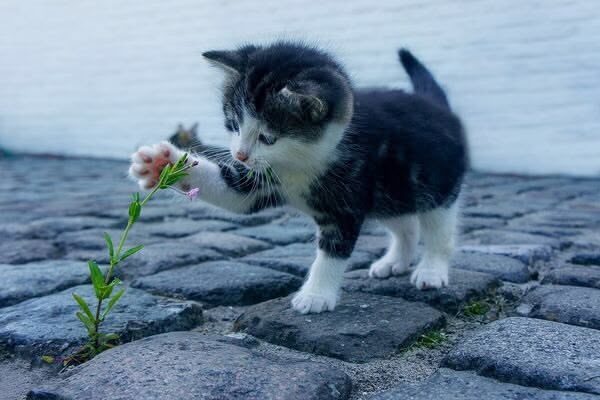
![A small kitten](/beispiele/katze.jpg)

Result

A small kitten

As in the standard ObsidianAs in the standard GitHubAs in the standard Jira

Confluence: Different !

The exclamation mark (!) opens the image picker. The full notation with brackets is only converted when you paste it.

ChatGPT: Not available

For security reasons, ChatGPT usually doesn't show images from a Markdown link.

Claude: Not available

Claude doesn't show images from external URLs in the text.

Notion: Not available

Add images with /image or by drag and drop.

Trello: Not available

Add images with / or from the toolbar.

ClickUp: Not available

Paste an image from the clipboard.

Teams: Not available

Paste images or attach them.

Discord: Not available

Slack: Not available

Upload images or drag them into the message field.

WhatsApp: Not available

Attach images to the message.

Google Docs: Not available

Asana: Not available

Add images with the + button.

Miro: Not available

Drag images straight onto the board.

Quote

Mark
>

A greater-than sign at the start of a line indents the paragraph as a quote.

More on this

In HTML, this becomes <blockquote>. You can nest quotes with >>, and they can contain lists or headings. Leave a blank line before and after the quote: without a blank line after it, the next line also counts as part of the quote.

Markdown (click to edit)

> We start in January.

That's what the minutes say.

Result

We start in January.

That's what the minutes say.

As in the standard ObsidianAs in the standard GitHubAs in the standard JiraAs in the standard ConfluenceAs in the standard, read only ChatGPTAs in the standard, read only Claude

Notion: Different "

In Notion, a quote starts with a quotation mark (") and a space. The greater-than sign (>) creates a toggle block instead.

As in the standard TrelloAs in the standard ClickUpAs in the standard TeamsAs in the standard DiscordAs in the standard SlackAs in the standard WhatsApp

Google Docs: Not available

Asana: Not available

Miro: Not available

There is no mark for quotes.

Code

Mark
`

Backticks show text unchanged in a font with fixed width. One backtick on each side wraps code in the middle of a sentence. Three backticks on lines of their own wrap a whole block.

More on this

After the three opening backticks (```), you can add the name of a language (js, python). Many apps then color the code. On US and UK keyboards, the backtick is on the key left of 1, without ⇧ Shift. If the code itself contains a backtick, wrap it in two backticks: ``Text with ` inside``. Outside of lists, indenting a line by four spaces after a blank line also makes a code block. So don't indent normal text.

Markdown (click to edit)

Press `Ctrl + S` to save.

```
Text in this block
stays as it is.
```

Result

Press Ctrl + S to save.

Text in this block
stays as it is.

As in the standard ObsidianAs in the standard GitHubAs in the standard JiraAs in the standard ConfluenceAs in the standard, read only ChatGPTAs in the standard, read only ClaudeAs in the standard NotionAs in the standard Trello

ClickUp: Different

Write code in a sentence as in the standard. For a code block, a backtick and a space at the start of the line are enough. End the block by pressing ↵ Enter three times.

As in the standard TeamsAs in the standard DiscordAs in the standard SlackAs in the standard WhatsApp

Google Docs: Not available

There is no mark for code as you type. Add code blocks with Insert > Building blocks or @.

As in the standard Asana

Miro: Not available

Not available in text boxes. Miro Docs have inline code with Ctrl + E (Mac: ⌘ Cmd + E).

Table

Mark
|

Vertical bars separate the columns. The second row, made of hyphens, turns the first row into the header row. Without this header row, there is no table.

More on this

Tables are part of GitHub Flavored Markdown (GFM). The bars don't have to line up in the source text. Colons in the separator row align a column: :--- left, :---: center, ---: right. To show a vertical bar as a character in a cell, write it with a backslash: \|.

Markdown (click to edit)

| Task | Who | Due |
| --- | --- | --- |
| Quote | Anna | Friday |
| Meeting | Tom | Monday |

Result

Task Who Due
Quote Anna Friday
Meeting Tom Monday

As in the standard ObsidianAs in the standard GitHub

Jira: Not available

Add tables with / and “Table” or from the toolbar.

Confluence: Not available

Add tables with / and “Table” or from the toolbar.

As in the standard, read only ChatGPTAs in the standard, read only Claude

Notion: Not available

Add tables with /table.

Trello: Not available

ClickUp: Not available

Teams: Not available

Typed bars stay as text. Add tables from the formatting toolbar.

Discord: Not available

Slack: Not available

Typed bars stay as text.

WhatsApp: Not available

Google Docs: Not available

Asana: Not available

Miro: Not available

In Miro, tables are an object of their own on the board.

Horizontal rule

Mark
---or***or___

Three hyphens on a line of their own make a horizontal rule. Leave a blank line before it.

More on this

If the three hyphens sit directly under a line of text, Markdown turns that line into a second-level heading. With *** or ___, this doesn't happen. In HTML, this becomes an <hr>.

Markdown (click to edit)

First part

---

Second part

Result

First part


Second part

As in the standard ObsidianAs in the standard GitHubAs in the standard JiraAs in the standard ConfluenceAs in the standard, read only ChatGPTAs in the standard, read only ClaudeAs in the standard NotionAs in the standard TrelloAs in the standard ClickUp

Teams: Not available

The hyphens stay as text.

Discord: Not available

Slack: Not available

The hyphens stay as text.

WhatsApp: Not available

Google Docs: Not available

Asana: Not available

Miro: Not available

There is no mark for horizontal rules.